Search for a doctor or hospital in your network.


Search for a doctor or hospital in your network.

Get News & Updates Directly To Your Inbox
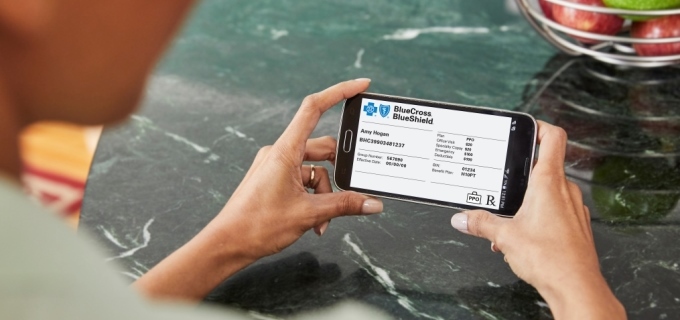
 Your phone does a lot more than text and make calls these days. It’s a safe place to keep important parts of your life. You can store photos of people you love and use it to pay for things. You can also use it to see your health insurance benefits. With a digital member ID card, your coverage and benefits information is easy to find when you need it.
Your digital member ID card is always up to date and lets you securely verify your Blue Cross and Blue Shield of Montana coverage with your doctor. You can find it in our BCBSMT App, or by logging into your member account online. Viewing your member ID card is then just one click away.
Using your digital member ID card at your doctor’s office is quick and easy:
Step 1. Log into the BCBSMT App.
Step 2. On the dashboard, tap View ID Card.
Step 3. That’s it! You’re now looking at your digital member ID card.
Step 4. Tap on the share icon in the top right corner of your screen and select Share ID Card. This will open a window where you can choose to email or message images of the card directly to your doctor’s office.
If you have an iOS mobile device, another useful option lets you download your digital member ID card to your mobile device’s wallet.* With this option, you can always access it, even if you don’t have good reception or an internet connection. To share from the mobile wallet, tap the share icon.*
When you download the BCBSMT App or add your digital member ID card to your device’s mobile wallet*, there’s no need to wait for a physical card to come in the mail. Access is always at your fingertips.
Prefer to log into your account at home? Here’s how you can access your digital member ID card online.
Step 1. Log into your account online.
Step 2. On the dashboard, click Member ID Cards.
Step 3. You’re now looking at your digital member ID card.
Step 4. Click Download to email a file to your doctor’s office or Print to print out a copy at home.
You can choose to stop getting a printed member ID card in the mail.
Using the BCBSMT App:
View your digital member ID card in the app. At the top of the screen, turn on the switch for Opt-in to Digital ID Card Only.
Online:
View your digital member ID card and click the Opt-in to Digital Only button under the card. You can also go to My Account, then Profile and Preferences. Select ID Card Preferences, turn on Digital-Only ID Card, and click Save.
You or your doctor’s office may have questions about how to use a digital member ID card. You can send us a secure message by logging into your member account or calling us at the customer service number listed on your member ID card.
*Feature only available for iOS
Blue Cross and Blue Shield of Montana, a Division of Health Care Service Corporation,
a Mutual Legal Reserve Company, an Independent Licensee of the Blue Cross and Blue Shield Association
© Copyright 2026 Health Care Service Corporation. All Rights Reserved.
Verint is an operating division of Verint Americas, Inc., an independent company that provides and hosts an online community platform for blogging and access to social media for Blue Cross and Blue Shield of Montana.
 File is in portable document format (PDF). To view this file, you may need to install a PDF reader program. Most PDF readers are a free download. One option is Adobe® Reader® which has a built-in screen reader. Other Adobe accessibility tools and information can be downloaded at https://www.adobe.com/trust/accessibility.html.
You are leaving this website/app ("site"). This new site may be offered by a vendor or an independent third party. The site may also contain non-Medicare related information. Some sites may require you to agree to their terms of use and privacy policy.
| | Powered by Verint